

5. Add a preference
Declare one saved value, then show its generated Settings page.
Continue with the Counter plugin. Unlike the counter's in-memory store, a setting is a preference saved through BitaKit's settings storage. Browser storage is the default. Here the preference controls how much each click adds, and BitaKit generates its Settings field.
1. Declare one setting
Create src/plugins/counter/settings.ts:
import { defineSettings, setting } from '@bitakit/core';

export default defineSettings({
  step: setting({ default: 1 }),
});
The key is counter.step. You do not need a custom control or page for a number.
2. Read the setting
A component can read it with the existing hook:
// src/plugins/counter/ui/step-label.tsx
'use client';
import { useSetting } from '@bitakit/ui';

export function StepLabel() {
  const step = useSetting('counter.step');
  return <p>Increment by {step.value}</p>;
}
Import StepLabel into the Counter page and render <StepLabel /> where you want the label.
The hook reads the same confirmed value as services and Actions.
3. Show the Settings page
If your app was created with Preferences or Shell, this route is already connected. In the minimal learning app, add it once:
- Install
@bitakit/app-preferencesfrom the same package set as Core. For the source checkout, use the local archive command. With matching published packages, runnpm install @bitakit/app-preferences@0.2. - Create
src/app/settings/[[...section]]/page.tsx:
'use client';
import { SettingsRoute } from '@bitakit/app-preferences';

export default function Page() {
  return <SettingsRoute />;
}
Run npm run typecheck, restart the dev server after adding the dependency, then open
/settings/counter. Change Step to 2. The label on /counter follows the saved value.
Reloading the page retains that preference in this browser.
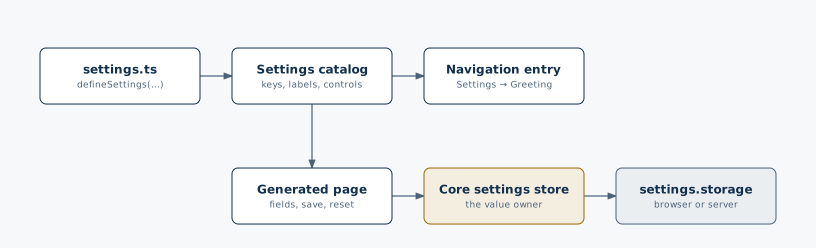
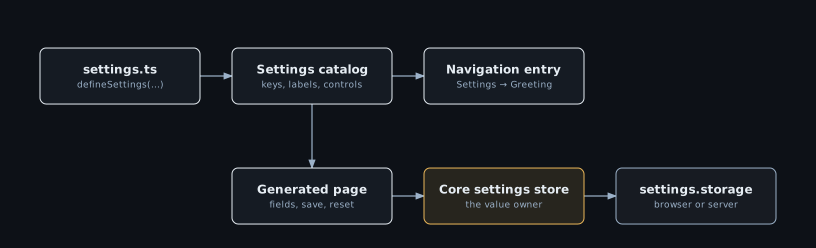
The declaration is the registration:
settings.ts → catalog page → navigation Action + page bodyApp Preferences creates the navigation entry and places the body in its slot. You do not register the setting again, add a forwarding Action, or attach a second page body.
Select a part of the Settings page
Settings navigation
Setting field
This field comes from step in settings.ts. Core owns its value; App Preferences supplies the standard control.
import { defineSettings, setting } from '@bitakit/core';export default defineSettings({ step: setting({ default: 1 }),});4. Use it in the operation
First let the service's existing method accept a number. In services/value.ts, replace just increment:
increment: (step = 1) => state.set(s => ({ count: s.count + step })),Then replace the Action's execute property, keeping its other properties:
execute: ({ services, settings }) =>
  services.counter.value.increment(settings.counter.step.get()),
With Step set to 2, each click now increases the count by 2. These two fragments are edits to your existing files, not additional files.
One declaration, one value owner
5. Customize only when needed
The generated page is enough for most settings. Select Settings page body in the example above
to see ui/settings/page.tsx: it replaces the body while retaining the automatic URL and navigation.
SettingField keeps validation, pending state and persistence.
For a page that retains all declared fields, run npx bitakit add settings-page counter
instead of writing that file manually; the command will not overwrite an existing file.
Use Settings page header slot, After Settings page body or Settings page footer slot to extend the generated page
without replacing its fields.
You have a complete feature
The Counter now has a page, state, an operation and a saved preference. The Advanced lessons let other plugins react to it and extend it without editing it.
What you have now
- This step gave you a saved preference,
counter.step, with its default and storage; with App Preferences installed, also its field on a generated Settings page. - Others extend it by reading
settings.counter.stepin their services and Actions, oruseSetting('counter.step')in React.
Next: Announce what happened →
| Need next | Read |
|---|---|
| Add content beneath an existing Settings page | Page extensions |
| Add a toolbar Action or a custom navigation link | Settings slot targets |
| Add another page or an access boundary | Custom pages |
| Add an app theme or save personal copies | Themes and appearance |
| Inspect what's running | Runtime management |
Core continues to own setting values. Page visibility and UI boundaries do not authorize server storage or protected operations.