

Themes and appearance
Add an app theme, switch color schemes and save personal copies.
A theme supplies shared colors, fonts and surface tokens. Appearance settings let each user choose a theme, navigation layout and other preferences. Shell provides the theme manager; Core saves its values; App Preferences displays its Settings page.
This guide assumes a configured app with @bitakit/shell and
@bitakit/app-preferences, including the generated CSS entry and mounted Settings route.
Use the matching local packages for features in this checkout.
The minimal Counter app does not include Shell automatically.
1. Add your first theme
Create src/themes/ocean.json:
{
  "schemaVersion": 1,
  "id": "ocean",
  "name": "Ocean",
  "light": {
    "primary": "#075985",
    "primary-foreground": "#ffffff"
  },
  "dark": {
    "primary": "#7dd3fc",
    "primary-foreground": "#082f49"
  }
}
These are CSS variable names without --. Unspecified tokens keep the central theme's
appearance, so this example only changes the primary color pair.
Run your app's npm run typecheck to regenerate discovery and check the composition, then
restart its development server. Open Settings → Appearance (/settings/theme with the
default Settings route). Under Themes, select Ocean · App.
The theme is now active. Existing controls that use the primary tokens pick up its colors. You do not register a Settings page, add a provider or edit generated files.
From a theme file to the app
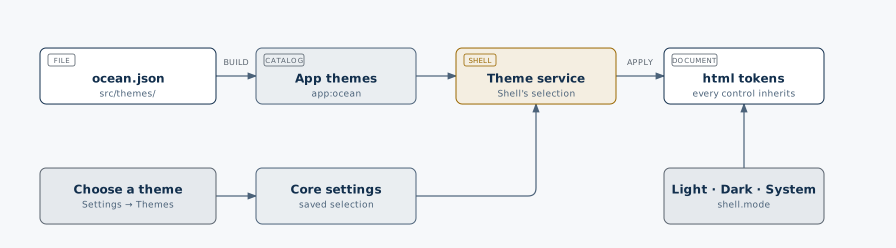
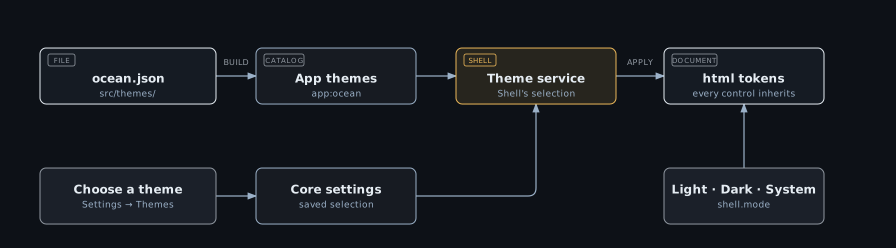
Discovery collects JSON files under src/themes/, including nested folders. Adding or changing
source files needs regeneration and a build; selecting an available theme happens at runtime.
2. Switch light and dark
In Appearance, choose Light, Dark or System under Color scheme. Shell selects the corresponding map from the same theme; System follows the device preference.
| Part | Example | Meaning |
|---|---|---|
| Theme | Ocean | The chosen palette and finish. |
| Color scheme | Dark | Which variant to use. |
| Navigation | Sidebar | The app layout, independent of the palette. |
| Density / corners | Compact / Square | Separate appearance preferences. |
For values shared by both variants, add an optional shared map to the same JSON file:
"shared": {
  "radius": "0.75rem",
  "font-sans": "ui-sans-serif, system-ui, sans-serif"
}
This is a property to add, not another complete file. A mode-specific value overrides the
same key in shared. An explicit user corner choice still applies. Fonts must already be
available or loaded by the host; a theme does not download them.
3. Let users customize their theme
The built-in theme manager is part of Appearance:
- Choose a theme and open Customize theme beside the selector.
- Give the copy a name; adjust colors, radius, surface shadow or font family.
- Use the preview's Light / Dark controls to inspect both variants.
- Choose Save copy and apply. Later edits to that personal theme use Save and apply.
The preview affects only its sample controls and dialog. Cancel discards the draft. Bundled and app themes remain unchanged; saving creates a personal copy. Values the editor does not expose are retained in that copy.
Preview first, save when ready
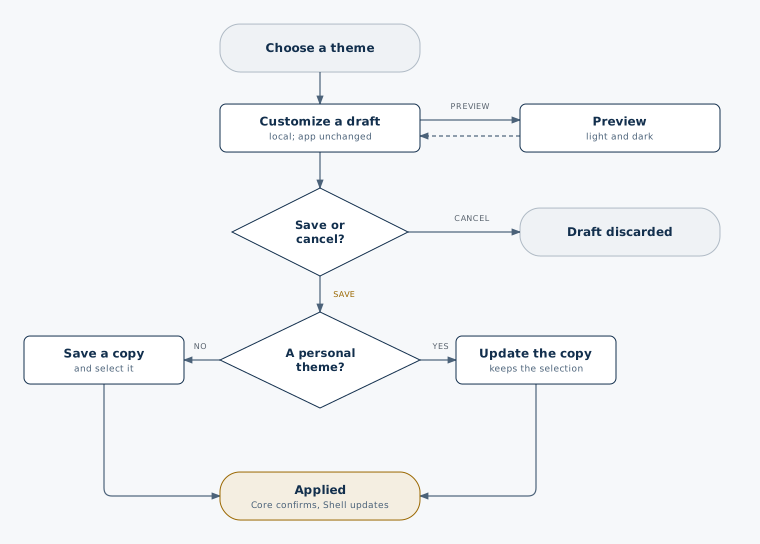
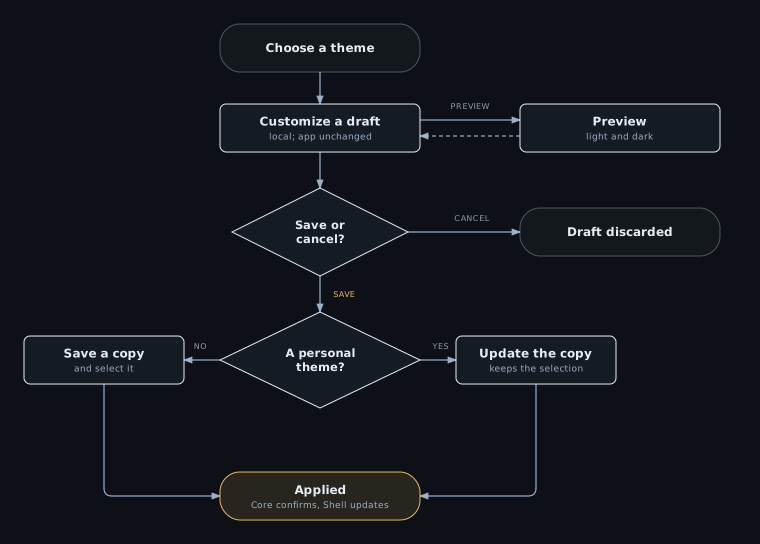
Reset to default theme selects App default without deleting personal themes. Delete theme is available for personal themes and asks for confirmation. Deleting the active personal theme selects App default.
Share a theme as a file
Download theme beside the selector saves the theme shown in the preview (the open draft,
otherwise the selected theme) as <name>.theme.json. Import theme opens such a file as an
unsaved personal copy: check it in the preview, then choose Save copy and apply. Nothing is
saved before that, and the copy gets a new ID, so it never replaces an existing theme.
Imported files may set only known theme tokens, and values may not load resources: url(),
image functions, CSS escapes, ;, braces, <, > and @ are rejected with the location of
the problem. Downloaded files reference the published JSON Schema in $schema, so editors and
coding agents can validate a theme they write. To ship a downloaded theme with the app, copy
the file into src/themes/.
4. Know what is saved
| Data | Owner | Lifetime |
|---|---|---|
src/themes/ocean.json | App source | Ships with the application; unchanged by the editor. |
| Selected theme and personal copies | shell.themeLibrary | One hidden user-scoped Core setting. |
| Light / Dark / System choice | shell.mode | A device-scoped Core setting. |
| Unsaved edits and preview mode | Appearance editor | Local draft; not applied to the app until saved. |
Core uses the existing settings.storage contract. The default is browser storage; cross-device
synchronization requires the host's server-backed storage and identity integration. There is
no separate theme persistence layer and no browser write back to source files.
Next: customize the integration
| You want to… | Read |
|---|---|
| Register themes directly with TypeScript | Programmatic themes |
| Add your own theme-selection control | Actions and service |
| Change the default CSS for every visual plugin | Central CSS and tokens |
| Understand identities, persistence and startup | Theme reference |