

7. Add an extension point
Turn the Counter button area into a slot other plugins can use.
Continue with the working Counter.
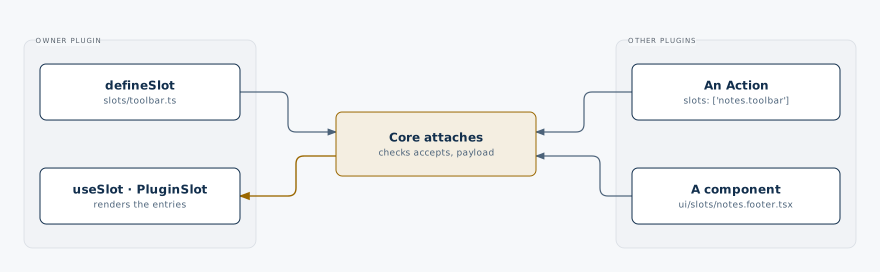
An extension point is a place you deliberately leave in your page or component so other plugins can add something there. In BitaKit, you define it as a named slot and choose where to render its content. For example, your Counter can offer a toolbar for another plugin's button, or a footer for another plugin's widget, without changing the Counter itself.
This lesson starts with a toolbar. The custom UI example below also shows an empty slot becoming a widget from a second plugin. Read more about slots →
A slot: declared, filled, rendered
1. Define a toolbar slot
Create src/plugins/counter/slots/toolbar.ts:
import { defineSlot } from '@bitakit/core';

export default defineSlot({ accepts: 'actions' });
Discovery names it counter.toolbar. It accepts Actions and uses the default list policy.
2. Place the existing Action
In src/plugins/counter/actions/increment.ts, add this one property to the existing
defineAction({ ... }) and keep everything else (title, execute with the setting and the event):
slots: ['counter.toolbar'],The Action is still registered once; the slot holds a reference to it.
3. Render the toolbar
Replace src/plugins/counter/ui/pages/index.tsx with:
'use client';
import { Action, useServiceState, useSlot } from '@bitakit/ui';
import { Button, PageHeader } from '@bitakit/ui/components';

export default function CounterPage() {
  const count = useServiceState('counter.value', (state) => state.count, 0);
  const toolbar = useSlot('counter.toolbar');
  if (toolbar.error) throw toolbar.error;
  return (
    <>
      <PageHeader title="Counter" />
      <output>{count}</output>
      {toolbar.items.map((item) => (
        <Action key={item.key} id={item.action}>
          <Button />
        </Action>
      ))}
    </>
  );
}
You still see one Increment button. The owner chooses the standard Button component; Actions supply their current labels, guards and behavior. Pending slots return no items until ready.
Another plugin can now target counter.toolbar with its own Action. It does not need to edit this page.
4. Use a different slot for custom UI
A custom page or component can offer the same extension mechanism as Shell. Choose each step:
first name the slot, then place an outlet (the component that renders it), then let a second
plugin add a widget. A future plugin can target the same slot once installed and enabled.
Paths below are relative to src/plugins/.
Your component: CounterPanel
Owned by the Counter plugin. Its existing content stays here.
Count: 0
Slot declared. Choose its position in step 2 to let widgets appear here.
1. Define the slot
The Counter plugin declares a place that accepts components. Discovery names it counter.footer. The declaration alone does not put anything on the page.
counter.footer · component
import { defineSlot } from '@bitakit/core';export default defineSlot({ accepts: 'component' });The owner defines what is accepted and where it appears. Other plugins supply content
without editing the owner. Dotted names do not create a layout: the mounted outlet determines
the position. Use an Actions slot and useSlot when the owner should render standard controls;
use a component slot and PluginSlot for contributed React content.
What you have now
- This step gave you a named place,
counter.toolbar, rendered by the Counter page. - Others extend it by placing their own Actions there from their own folder, as the next step shows.
Next: Extend the Counter from a second plugin →
Later: context, policies and manual composition
| Question | Answer |
|---|---|
| Does a group choose UI placement? | No. groups organizes queries; slots chooses placement. |
| Can I use an existing navigation slot? | Yes. With Shell installed and mounted, target shell.navigation from a URL Action. |
| How do row menus get the row ID? | Declare a payload and map it to Action input. See the slot reference. |
| Can I define slots without files? | Yes. definePlugin({ id: 'counter', slots: { toolbar } }) uses the same declarations. |
| Can slots be nested in folders? | Yes. slots/row/menu.ts and slots/row.menu.ts both name counter.row.menu. |
| Can another plugin replace a part? | Yes. Declare it with policy: 'single' and render <PluginSlot name fallback={<Default />} />; a contribution replaces the default. See Layouts. |
Use item.key for rendering and item.action for binding. Hiding an outlet hides its content;
it does not stop plugins or unregister their contributions. A stopped contributor releases its attachments.
An outlet renders again only for what it shows: an Actions slot when one of its own Actions
changes, a component slot when its contributions or payload change. Running an Action elsewhere,
or a service change that refreshes other Actions, leaves it alone. Memoize payload objects
(useMemo) so contributed components skip renders of the page around them.