

4. Add an Action
Define one operation as an Action and bind it to the Counter; every bound control shares its state.
Continue with the Counter service. An Action is BitaKit's central UI action and state management. Define an operation once; every control that triggers it, a button, menu item, link, search result or shortcut, shares its current label, availability rules, confirmation and execution state.
1. Define the operation
Create src/plugins/counter/actions/increment.ts:
import { defineAction } from '@bitakit/core';

export default defineAction({
  title: 'Increment',
  execute: ({ services }) => services.counter.value.increment(),
});
The file names the Action counter.increment. It calls the service you already created.
2. Bind a button
Replace src/plugins/counter/ui/pages/index.tsx with:
'use client';
import { Action, useServiceState } from '@bitakit/ui';
import { Button, PageHeader } from '@bitakit/ui/components';

export default function CounterPage() {
  const count = useServiceState('counter.value', (state) => state.count, 0);
  return (
    <>
      <PageHeader title="Counter" />
      <output>{count}</output>
      <Action id="counter.increment">
        <Button />
      </Action>
    </>
  );
}
Click Increment. The number increases. The button gets its label and execution behavior from the Action; it needs no separate click handler.
You now have a complete feature: one page, one service and one Action.
3. Add one rule when needed
To cap this demonstration at 10, add enabled to the same Action:
export default defineAction({
  title: 'Increment',
  enabled: ({ services }) => services.counter.value.state.get().count < 10,
  execute: ({ services }) => services.counter.value.increment(),
});
Keep the existing import. Every binding updates as the store changes; at 10 the button is disabled. This optional example is a UI/execution rule, not server authorization.
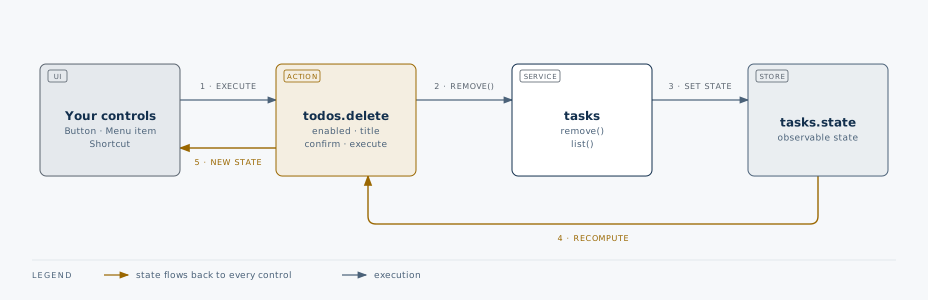
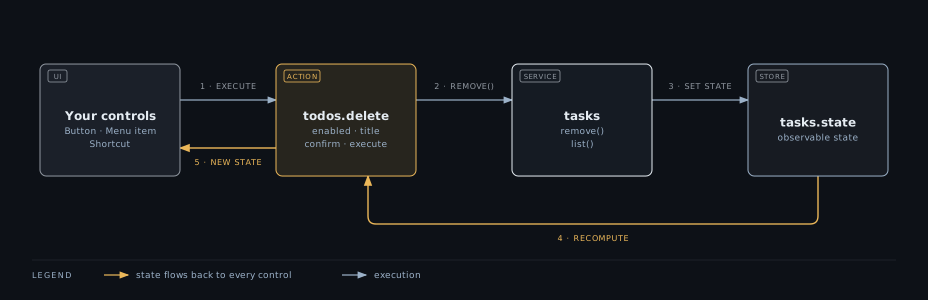
The Action loop
The same loop works for a delete button, menu item or shortcut. In this example, removing a
todo changes the service store; the Action's enabled function is re-evaluated and every
bound control reads the new state.
One Action, every control
Choose where an Action appears
With Shell installed, use slots: ['shell.navigation'] for navigation or slots: ['shell.toolbar']
for standard controls in the header toolbar. Shell renders the bound button or link for you.
Component regions instead
render a widget that binds the same Action. Select a destination below: the highlighted link
shows the result, and the code shows exactly which file to create under src/plugins/.
Your plugin page
The owner renders this content. Moving the sample Action does not change the page.
The built-in toolbar sits beside custom header-end content in the same row. For a separate full-width row below the header, use shell.header.rows. On narrow screens, scroll the header illustration sideways to see all regions.
Navigation
Place the URL Action directly. Shell renders its current title and href as a native navigation link.
shell.navigation · actions
import { defineAction } from '@bitakit/core';export default defineAction({ title: 'Your action', href: '/example', slots: ['shell.navigation'],});Header start/end follow reading direction. The sidebar footer is available in the sidebar layout; it is separate from the app footer. An attached contribution only appears where its owner mounts an outlet. See Layouts and regions for the full map.
For an operation instead of a URL link, use execute in the Action and ActionButton inside
the widget. Keep execution in the Action. To offer a destination in your own component,
define and render a slot.
What you have now
- This step gave you one operation,
counter.increment. Every control bound to it gets the same label, disabled and pending state, and the same guards. - Others extend it by binding the same Action from their own UI with
<Action id="counter.increment">, or by placing it in a slot.
Next: Save a preference →
Later: choose the option you need
| Need | Read |
|---|---|
| Pass a value into an Action | Input |
| Navigate to a page | Navigation |
| Ask before a destructive operation | Confirmation |
| Handle pending work or concurrent execution | Concurrency |
| Bind a menu, toggle or custom control | Bindings |
| Look up every property | Action reference |
Set these options only when the operation needs them. They are not part of the minimal Action definition.